
Workflow Tutorial
This walkthrough follows the desktop app's Video Music Studio flow. The screenshots below are captured from the web-rendered app UI, using the repo's sample cycling video assets.
1. Import A Video
Start by importing one local video. The app probes duration, dimensions, frame rate, and source audio, then shows a preview frame.
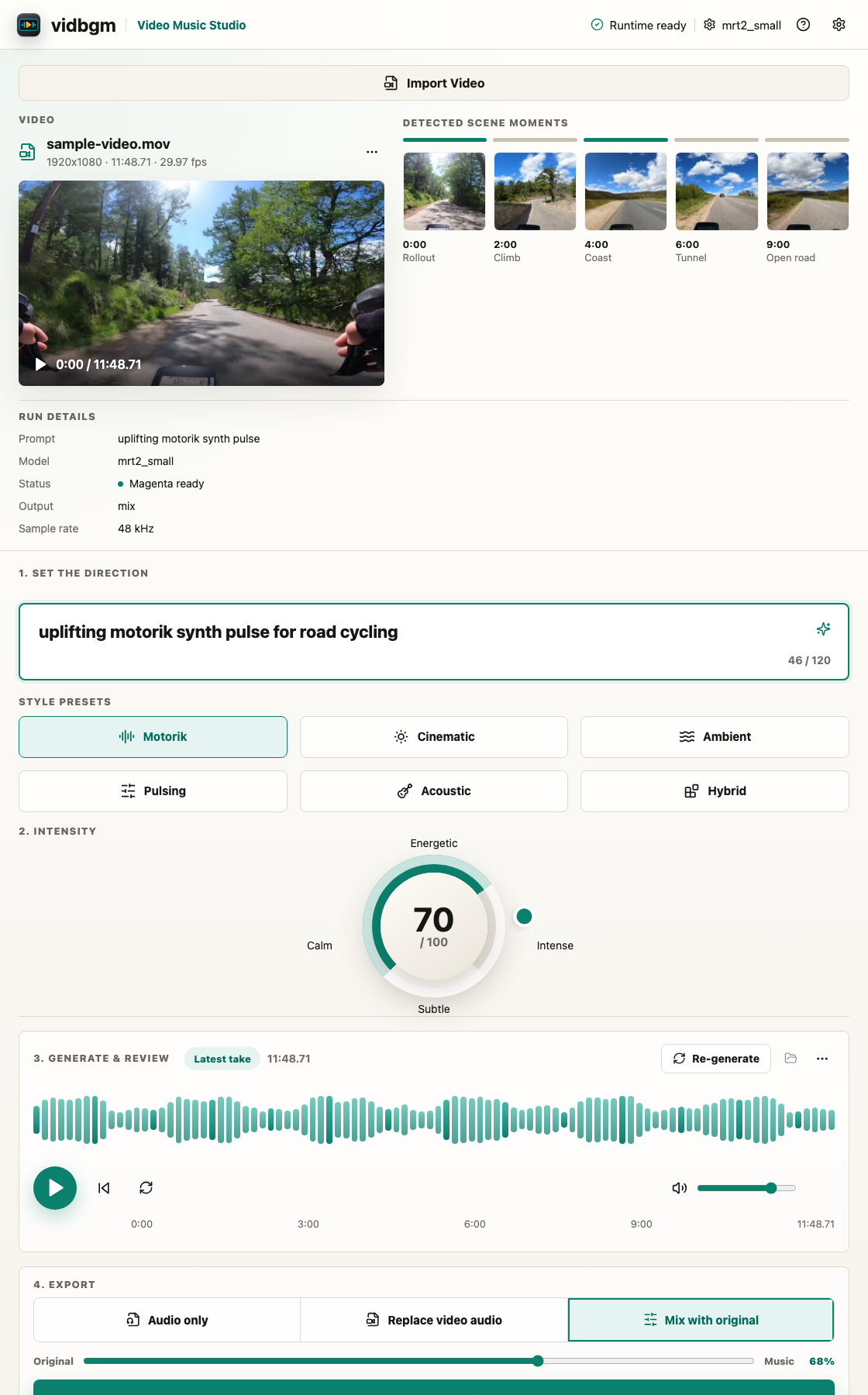
Use videos with a readable video stream and, for mix exports, a source audio stream. The screenshots use cycling sample assets, but the repo does not include large source video files.
2. Review Scene Moments
After import, the left rail shows detected scene moments. These moments are the visible version of the frame-analysis timeline: they help confirm that the score will react to meaningful changes in the video.
The CLI writes the deeper artifacts under the selected work directory:
frames_manifest.jsoncontact_sheet.jpganalysis.jsontimeline.json
3. Set The Music Direction
Write a short music direction that describes the desired score, not a full editing brief. Good prompts are musical and compact:
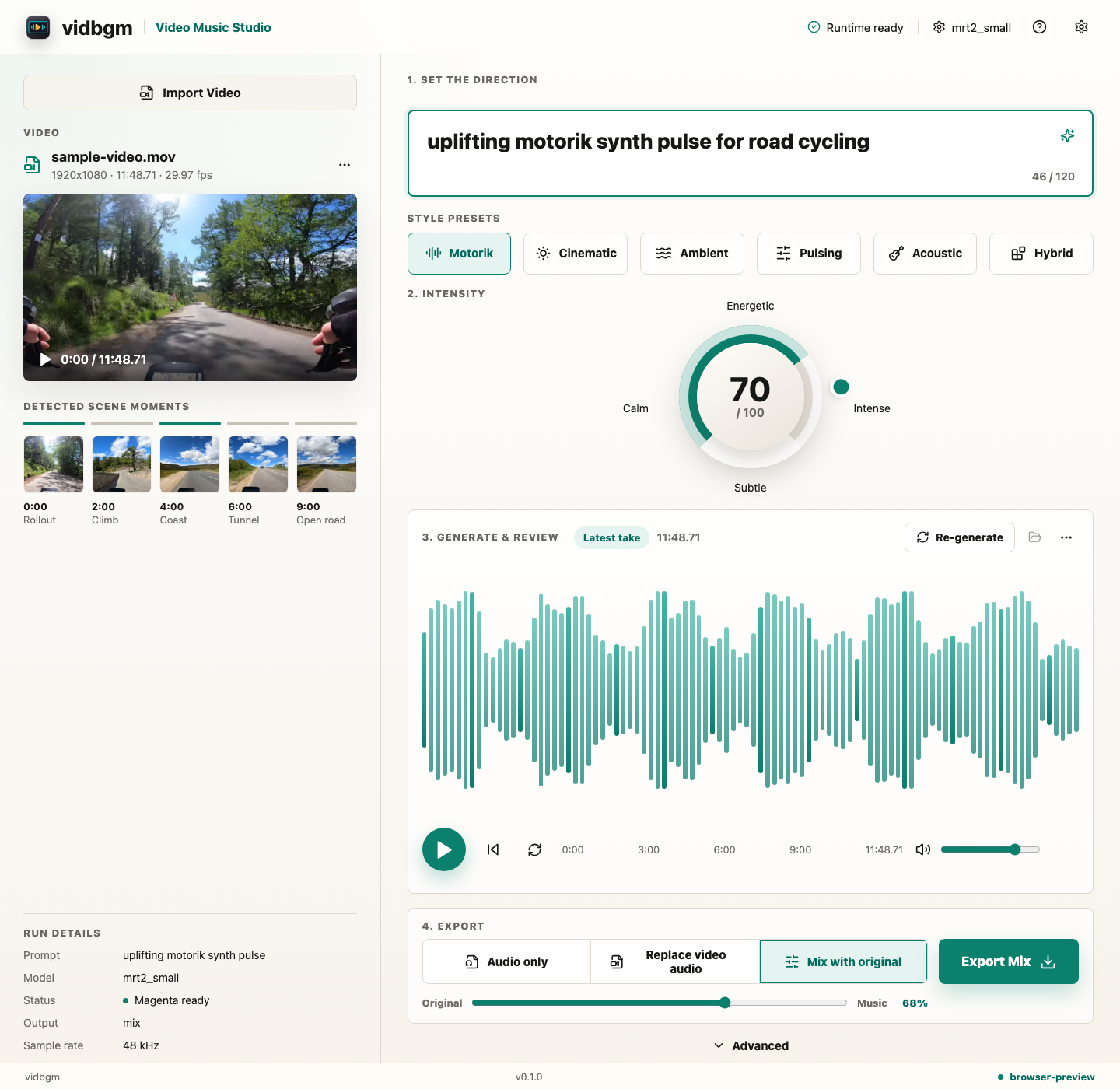
uplifting motorik synth pulse for road cyclingThen choose a style preset and set intensity. The desktop app uses those controls to shape weighted prompt slots for Magenta.
4. Generate And Review
Press Re-generate to produce a take. In the native Tauri app, generation runs through the shared Rust pipeline and emits progress events for setup, scene analysis, composition, and rendering.
When generation finishes, review the waveform and play the latest artifact. If the app reused analysis, the new take can iterate on the music direction without redoing every video step.
5. Export The Result
Choose an export mode:
| Mode | Use when |
|---|---|
| Audio only | The generated WAV will be edited elsewhere. |
| Replace video audio | The generated music should become the only audio track. |
| Mix with original | The generated score should sit with the original camera audio. |
For mix exports, use the balance slider to set the original-to-music blend before exporting.
6. Inspect Artifacts
Each run writes inspectable files so you can debug or compare takes:
- generated
music.wav - rendered
.movwhen exporting video timeline.jsonwith prompt updatessegments.csvwith segment timingeval.mdwhen evaluation is requested
Use Reveal latest in the desktop app to open the latest generated artifact in Finder.